How to Set Up a Dev Environment for JavaScript
Before we delve further into how JavaScript works in the backend, you must set up a proper dev environment on your computer.
Because in this case, programs are no longer executed inside your browser. Instead, they need to run on the server, so that it can access databases, environmental variables, and other sensitive information.
To do this, you need to install something called JavaScript runtime.
A JavaScript runtime is a software environment in which JavaScript code can be executed. This environment provides JavaScript with components and libraries that allow the code to be executed.
And yes, there is a runtime inside your Google Chrome browser called Chrome V8. It is why JavaScript code and be understood and executed inside your browser.
If we take that environment out of the browser and installed on our computer as a dedicated program, it will enable us to execute JavaScript outside of a browser.
And congratulations, you just created Node.js.
Node.js is an open-source JavaScript runtime that is built on top of the V8 engine. It provides a set of built-in components that allow you to create web apps, command-line tools, and even mobile apps using JavaScript.
It is also compatible with all the major operating systems, enabling you to run JavaScript code anywhere you want.
There are other alternatives to Node.js, such as Deno and Bun. They all claim to be faster than the old-school Node.js. Especially Bun, which has been getting a lot of attention recently, but since they are relatively new to the game, there might be some compatibility issues.
So for the course, let's stick to Node.js.

Besides Node.js, we'll also need npm, which stands for Node Package Manager. It is the default package manager for Node.js.
It allows you to easily install, update, and manage third-party packages that can be used in your JavaScript project.
Depending on your operating system, there are many different ways to install Node.js and npm.
Go to the Download page on the official website of Node.js.
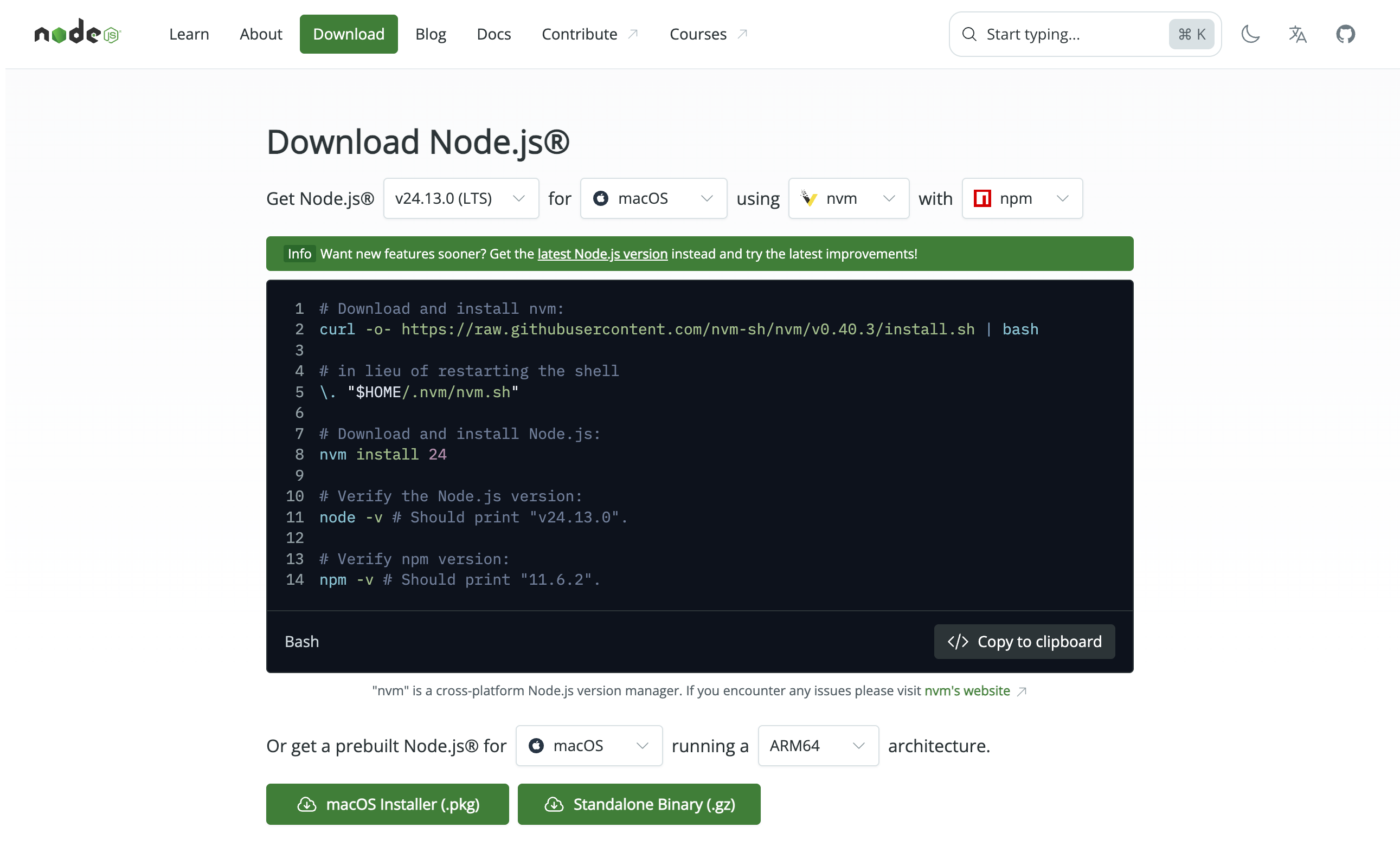
Select your desired Node.js version, your operating system, Node.js version manager, and the Node package manager.
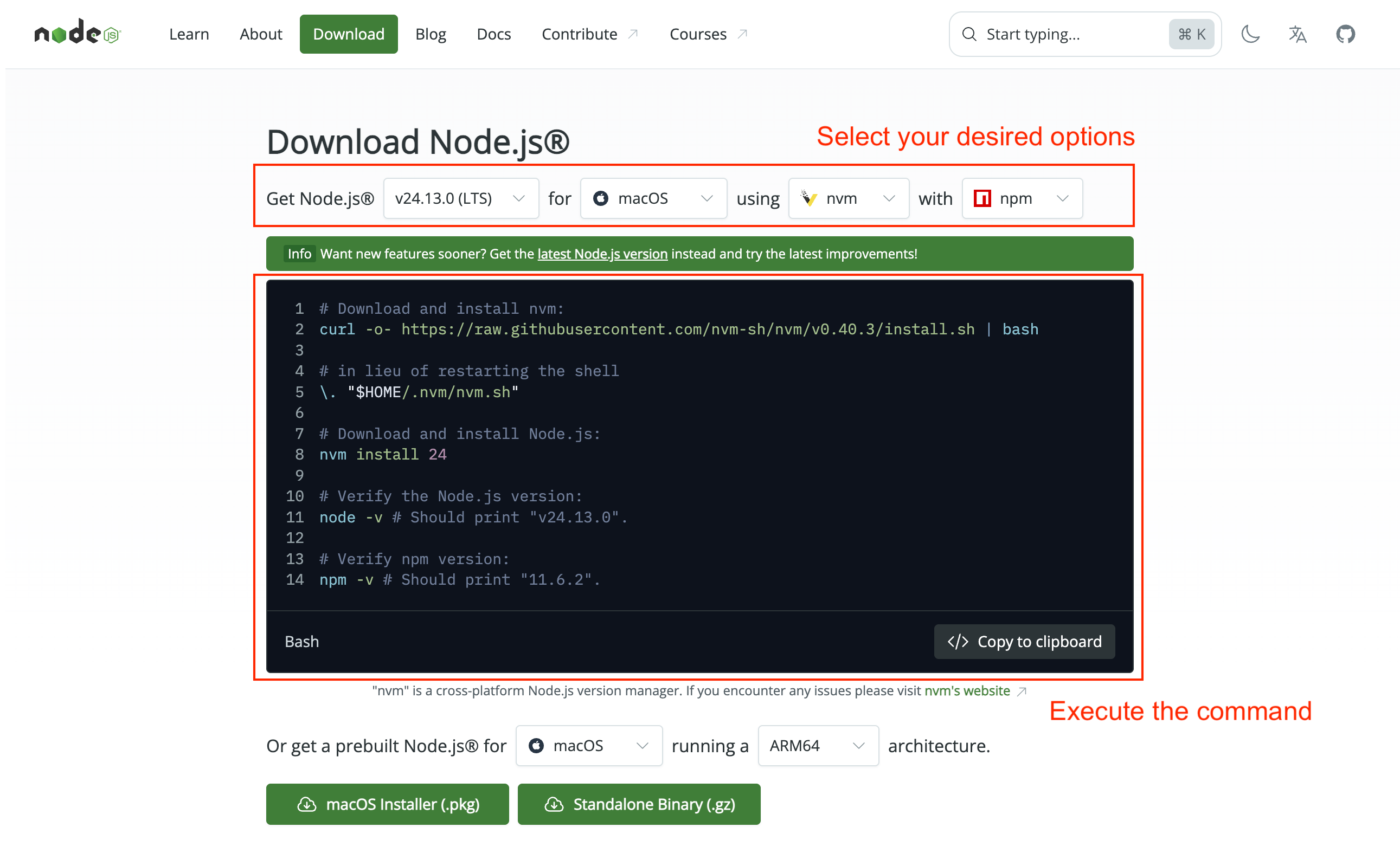
The commands below will change with your options.
Copy and execute the command inside your terminal.
Both Node.js and npm should be installed on your computer. Verify your installation by running the following commands:
node --versionnpm --version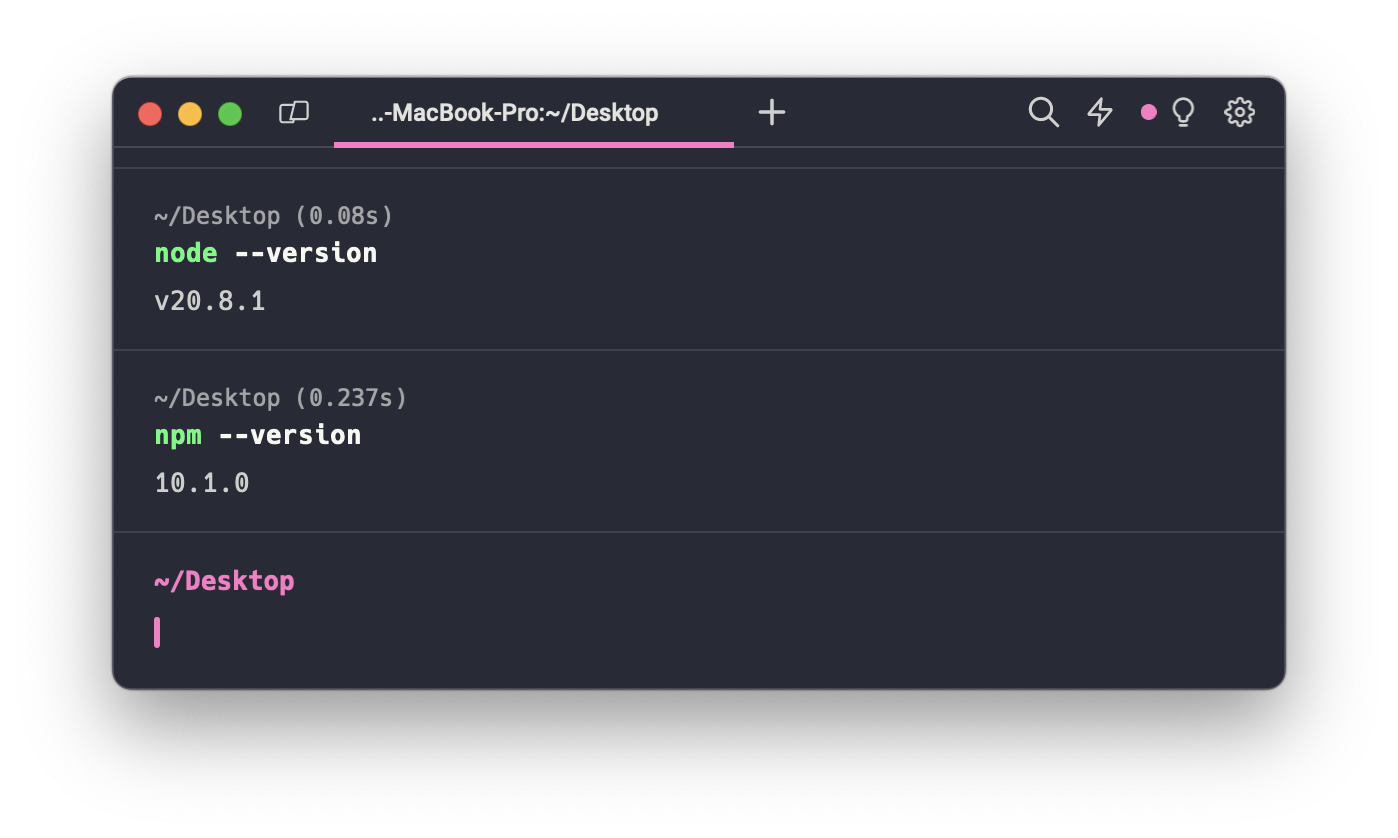
const http = require('http');

const hostname = '127.0.0.1';
const port = 3000;

const server = http.createServer((req, res) => {
  res.statusCode = 200;
  res.setHeader('Content-Type', 'text/html');
  res.end('Hello world');
});

server.listen(port, hostname, () => {
  console.log(`Server running at http://${hostname}:${port}/`);
});
Terminal