Add Text Spacing Using CSS
Besides the font and text customization properties discussed, there's another set of text properties that let you center, justify, and adjust text alignment.
Word spacing
The word-spacing property sets the space between words. For instance,
<p>Lorem ipsum dolor sit amet consectetur.</p>p {
word-spacing: 10px;
}In this example, the space between words would be 10 pixels.
The property also accepts negative values. Positive values make the words further away from each other, and negative values make them closer.
The quick brown fox jumps over the lazy dog. This sentence contains every letter in the English alphabet.
Letter spacing
Letter spacing can be defined similarly, using the letter-spacing property.
p {
  letter-spacing: 5px;
}The quick brown fox jumps over the lazy dog. This sentence contains every letter in the English alphabet.
You probably won't need these two properties in most cases, especially if the texts are meant for reading.
But sometimes, when you need to create certain unique styles, they might come in handy when combined with other CSS properties.
For instance, the following example might be a good design for a landing page hero section.
<p>
  <span>Hello, World!</span>
</p>p {
font-family: Arial, Helvetica, sans-serif;
font-size: 100px;
font-weight: 900;
text-transform: capitalize;
letter-spacing: -2px;
word-spacing: -5px;
}
span {
background-image: linear-gradient(to right, #a855f7, #ec4899);
background-clip: text;
-webkit-background-clip: text;
color
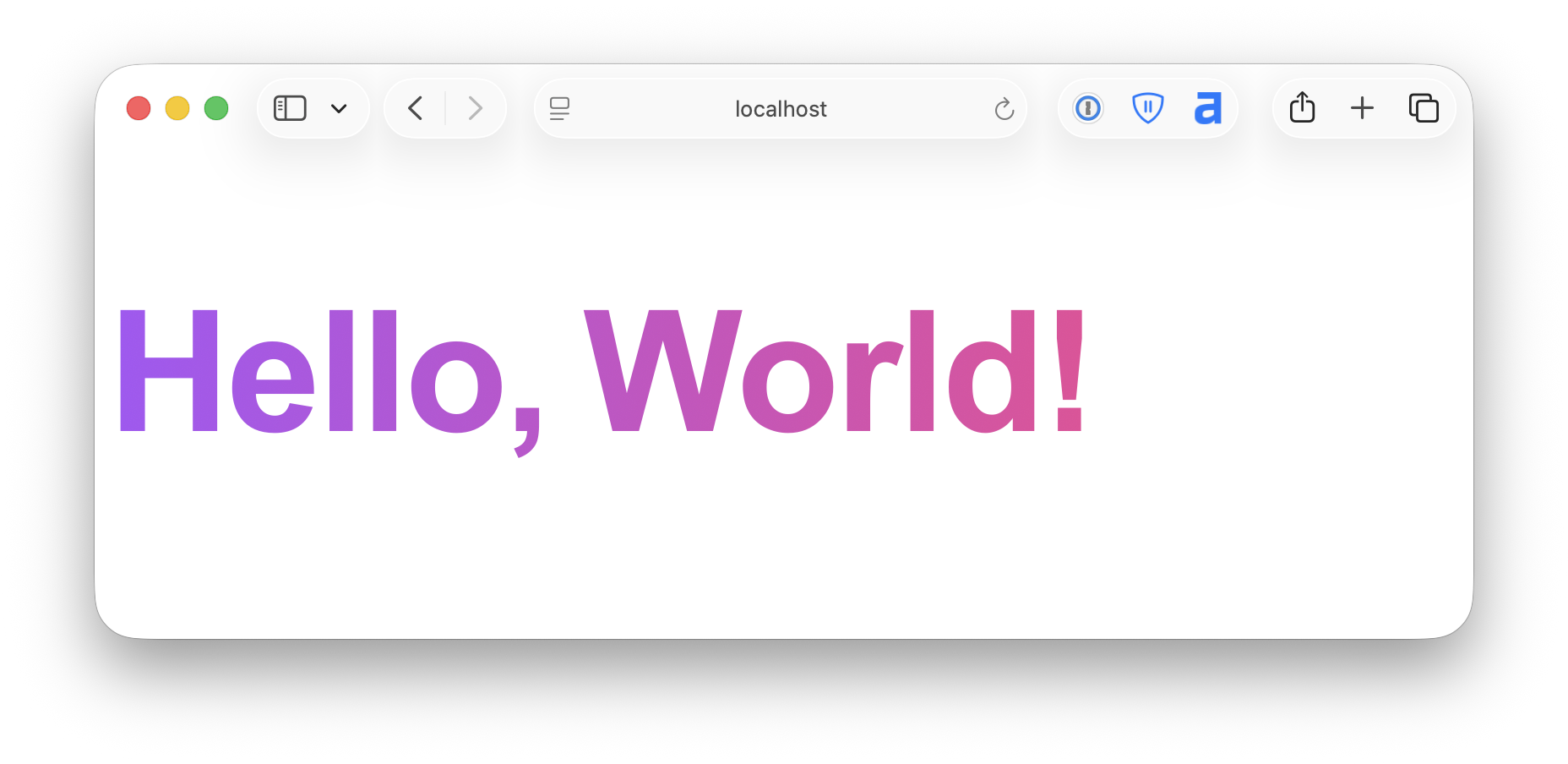
In this case, the text is meant to be decorative, so we can adjust the spacing to make it look more artistic.
But if the text is meant for reading, then the word and letter spacing should be adjusted with caution.
Line height
Besides the word and letter spacing, there is also the spacing in the vertical direction, the line height (sometimes referred to as lead), which is the distance between two baselines.
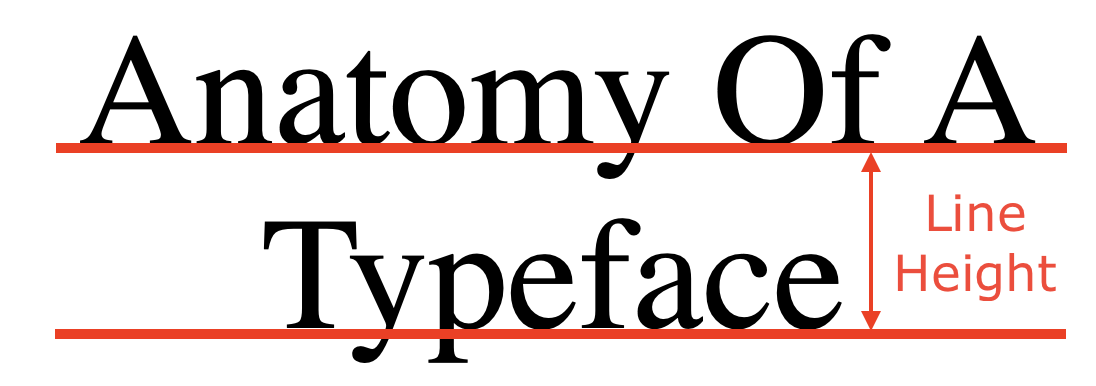
Line height can be specified using the property line-height.
p {
  line-height: 20px;
}The quick brown fox jumps over the lazy dog. This sentence contains every letter in the English alphabet.
Indentation
You can also control the indentation in a text block using the text-indent property.
p {
  text-indent: 50px;
}The quick brown fox jumps over the lazy dog. This sentence contains every letter in the English alphabet.
White space
.normal {
  white-space: normal;
}

.nowrap {
  white-space: nowrap;
}

.pre {
  white-space: pre;
}

.pre-wrap {
  white-space: pre-wrap;
}

.pre-line {
  white-space: pre-line;
}
Besides the text customization and alignment techniques we have discussed so far, there are still some miscellaneous key points about typography we must talk about.
By default, the browser removes extra white space when rendering text.
It is possible to change that behavior by setting the white-space property, which accepts the following input options:
| Keyword | Description |
|---|---|
normal | The default condition, the browser collapses all extra white spaces, and the text will wrap when necessary (automatically changes to the next line when there is insufficient space). Line breaks are also considered white spaces. |
nowrap | The browser will not automatically wrap the texts. |
pre | All white spaces will be preserved, and texts will not wrap automatically. |
pre-wrap | All white spaces will be preserved, and texts will wrap automatically. |
pre-line | Sequences of white spaces (multiple spaces, tabs) will collapse into one, but line-breaks will be preserved, and texts will wrap automatically. |
Word break
The word-break property defines what happens when a word is too long to fit inside its content box.
<p class="normal">pneumonoultramicroscopicsilicovolcanoconiosis</p>
<p class="break-all">pneumonoultramicroscopicsilicovolcanoconiosis</p>p {
width: 100px;
background-color: antiquewhite;
}
.normal {
word-break: normal;
}
.break-all {
word-break: break-all;
}When set to normal, the word will ignore the defined size and extend beyond the content box.
When set to break-all, the word will wrap to fit inside the content box.
Hyphens
By default, hyphens are suggested manually using the HTML entity ­.
<p>
Lorem ipsum dolor sit amet con­sectetur, adipisicing elit. Fugiat,
repre­henderit?
</p>When the content box is too small, the word will be broken based on the suggested hyphen.
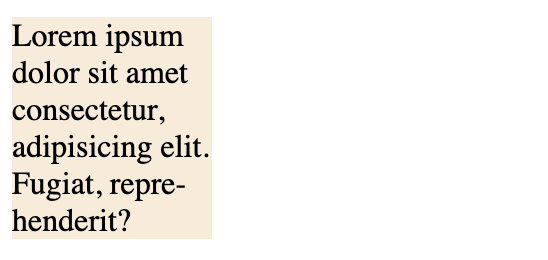
You can also let the browser choose a hyphen automatically by setting the hyphen property to auto.
Or remove all hyphens and let the word break out of the content box by setting hyphen to none.
<p class="none">
Lorem ipsum dolor sit amet consectetur, adipisicing elit. Fugiat,
repre­henderit?
</p>
<p class="manual">
Lorem ipsum dolor sit amet consectetur, adipisicing elit. Fugiat,
repre­henderit?
</p>
<p class="auto">
Lorem ipsum dolor sit amet consectetur, adipisicing elit. Fugiat,
repre­henderit?
</p>p {
width: 100px;
background-color: antiquewhite;
font-size: 20px;
}
.none {
hyphens: none;
}
.manual {
hyphens: manual;
}
.auto {
hyphens: auto;
}<!DOCTYPE html> <html lang="en"> <head> <meta charset="UTF-8"> <meta name="viewport" content="width=device-width, initial-scale=1.0"> <title>Document</title> <link rel="stylesheet" href="/styles.css"> </head> <body> <p> <span>Hello, World!</span> </p> </body> </html>