Creating a Flexbox Layout Using CSS
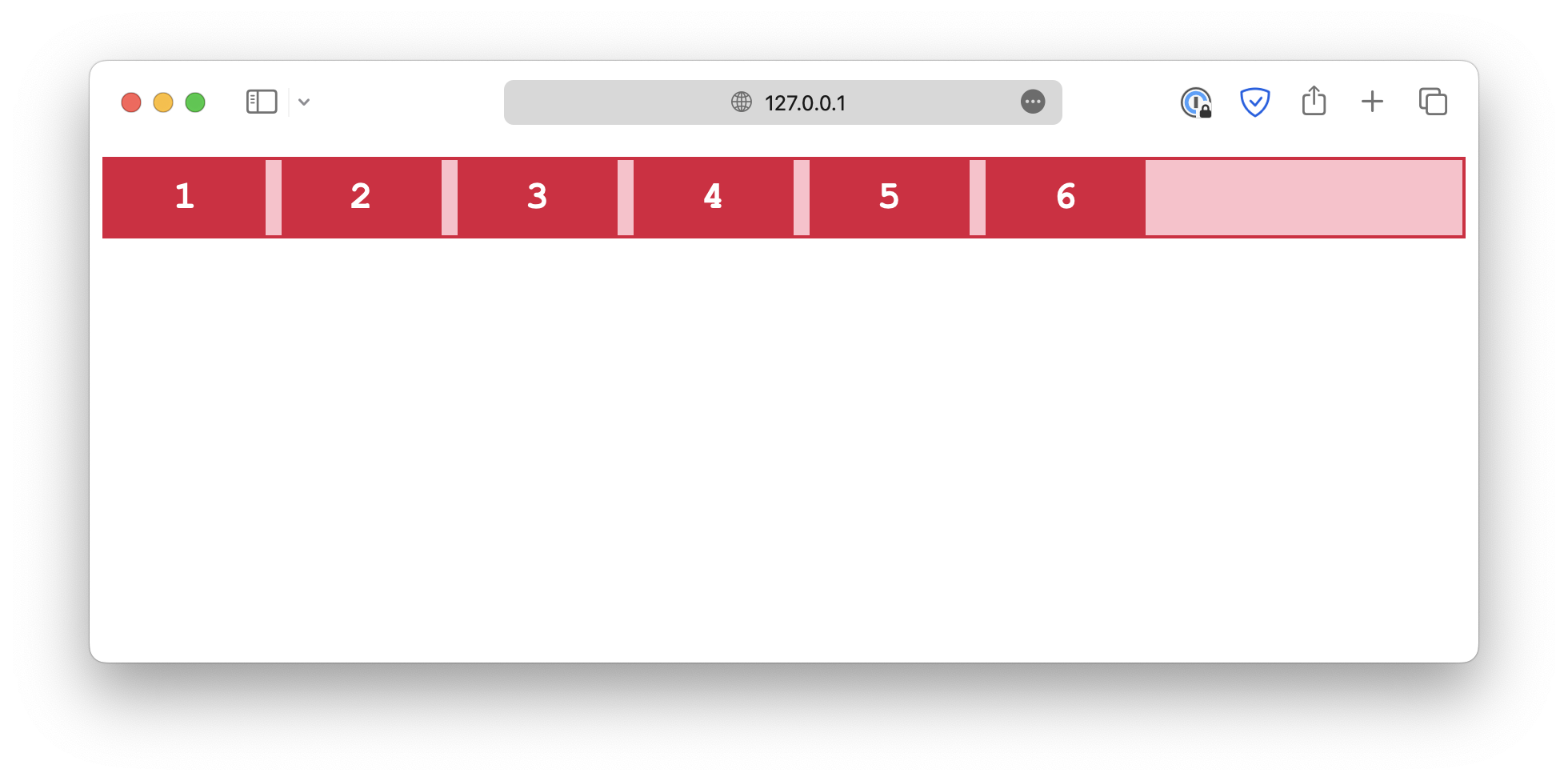
By default, the flex items are displayed in the same order as they are laid out in the source code.
So this:
html
<div class="container">
  <div class="item">1</div>
  <div class="item">2</div>
  <div class="item">3</div>
  <div class="item">4</div>
  <div class="item">5</div>
  <div class="item">6</div>
</div>
Gets rendered into this:
However, sometimes you may want to change the order of the flex items, without changing the source code.
For example, you may want to display the last item first, or you may want to display the items in a different order on different screen sizes.
The order property can be added to individual flex items to change their order in the flex stack.
For example:
html
<div class="container">
  <div class="item order-4">1</div>
  <div class="item order-5">2</div>
  <div class="item">3</div>
  <div class="item order-3">4</div>
  <div class="item order-2">5</div>
  <div class="item order-1"
css
.order-1 {
  order: 1;
}

.order-2 {
  order: 2;
}

.order-3 {
  order: 3;
}

.order-4 {
  order: 4;
}

.order-5 {
  order: 5;
}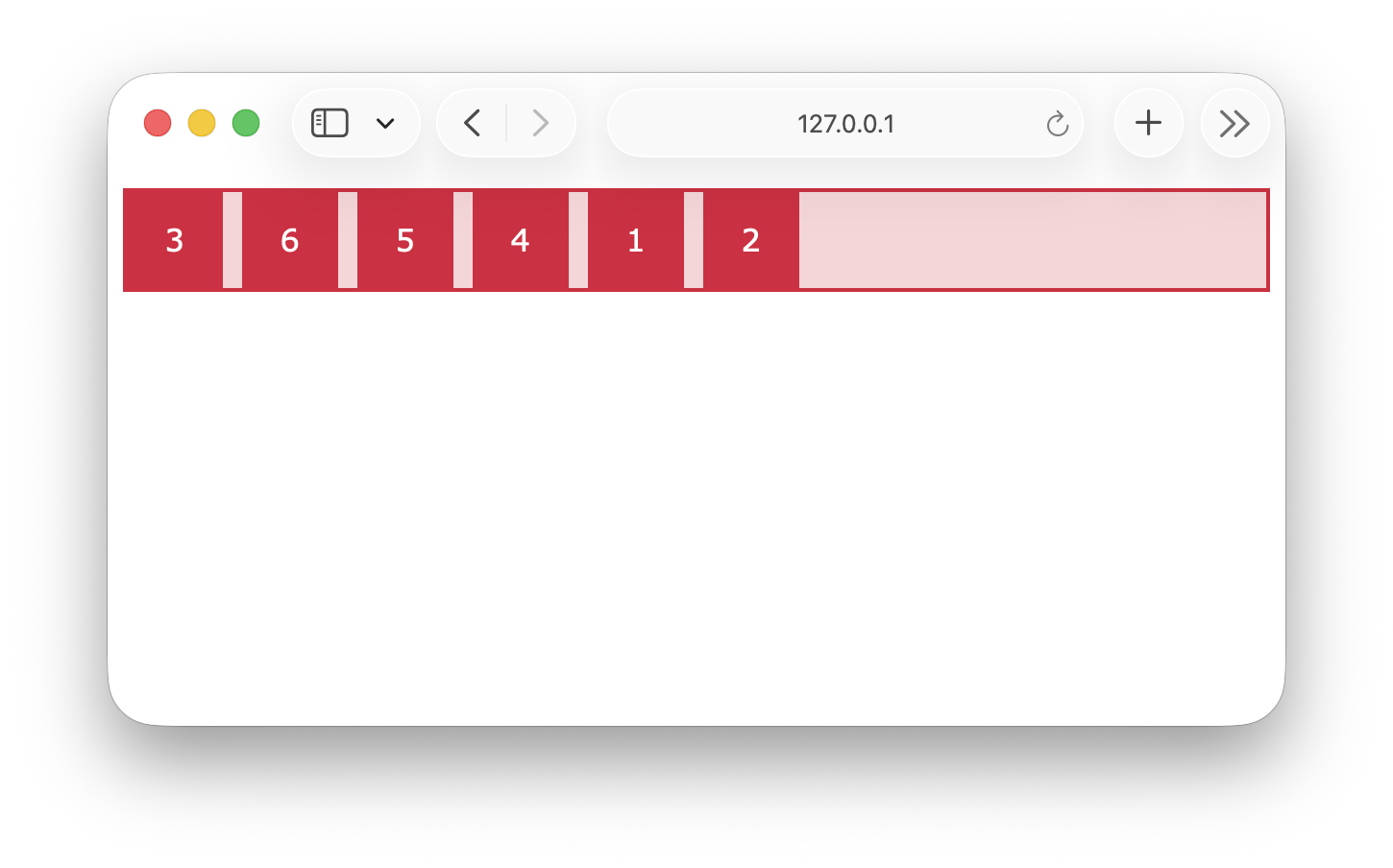
The default value for order is 0, so item 3 will be displayed first.
Followed by item 6, which has order: 1, and item 5, which has order: 2, and so on.
text
3 -> 6 -> 5 -> 4 -> 1 -> 2<!DOCTYPE html> <html lang="en"> <head> <meta charset="UTF-8"> <meta name="viewport" content="width=device-width, initial-scale=1.0"> <title>Document</title> <link rel="stylesheet" href="/styles.css"> </head> <body> <div class="container"> <div class="item">1</div> <div class="item">2</div> <div class="item">3</div> <div class="item">4</div> <div class="item">5</div> <div class="item">6</div> </div> </body> </html>