Advanced CSS Selectors
When the browser renders a webpage, it creates a tree structure based on the HTML document.
For example:
<body>
  <div>
    <p>. . .</p>
    <section>
      <p>. . .</p>
    </section>
  </div>
  <section>
    <p>. . .</p>
  </section>
</body>
This HTML document will create a tree structure like this:
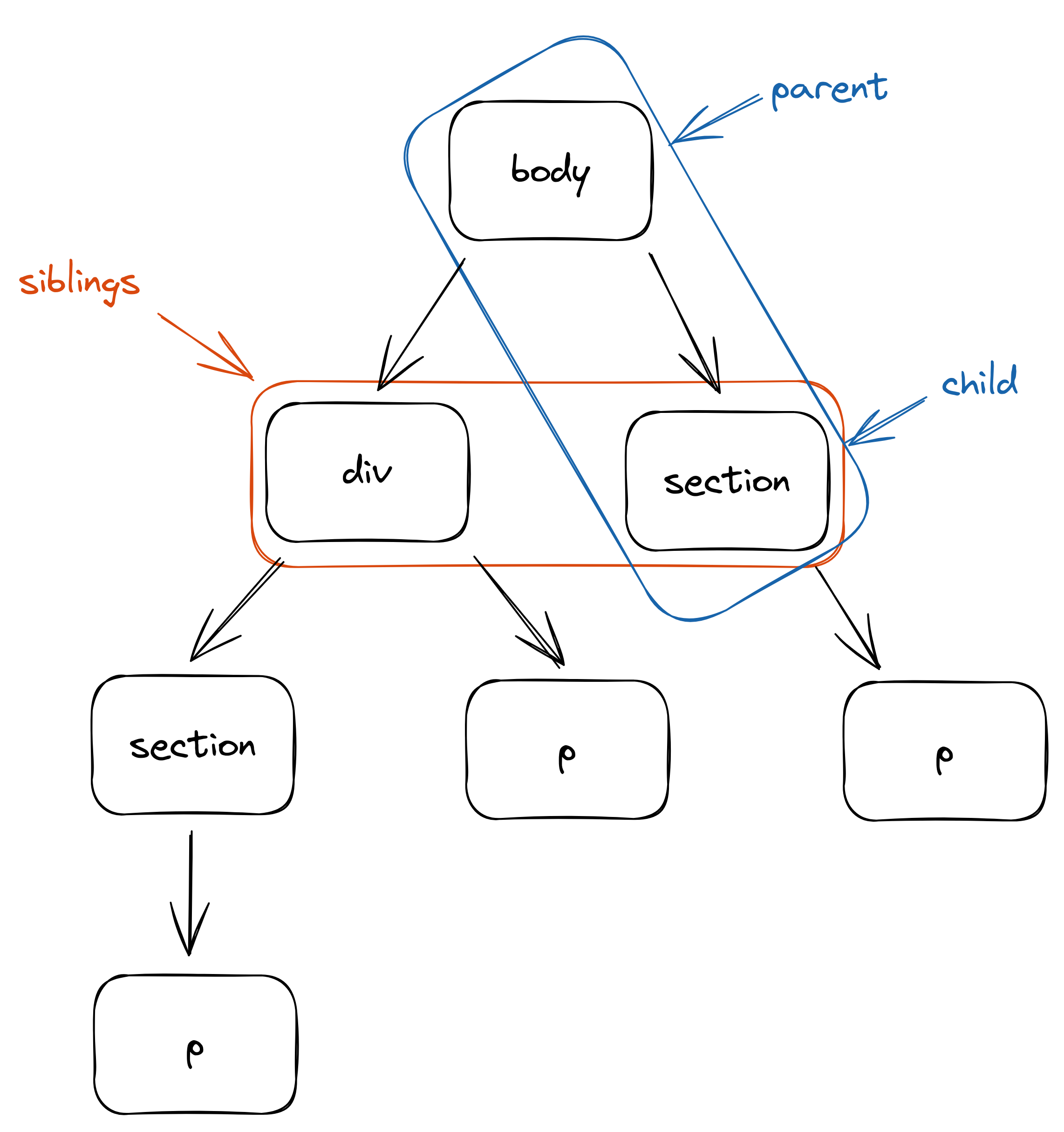
This is referred to as a DOM (Document Object Model) tree, in which elements have hierarchical relationships with each other.
For instance, if we start from <body>, the parent, it has two children, <div> and <section>, which are siblings to each other.
Selecting descendants
You may utilize these relations between elements to select the desired elements. These selectors are called combinator selectors.
For example, you can use a space character to select the descendants of an element.
div p {
  color: red;
}
Try this in the code playground, and you will see that both the direct and indirect descendants of <div> are selected.
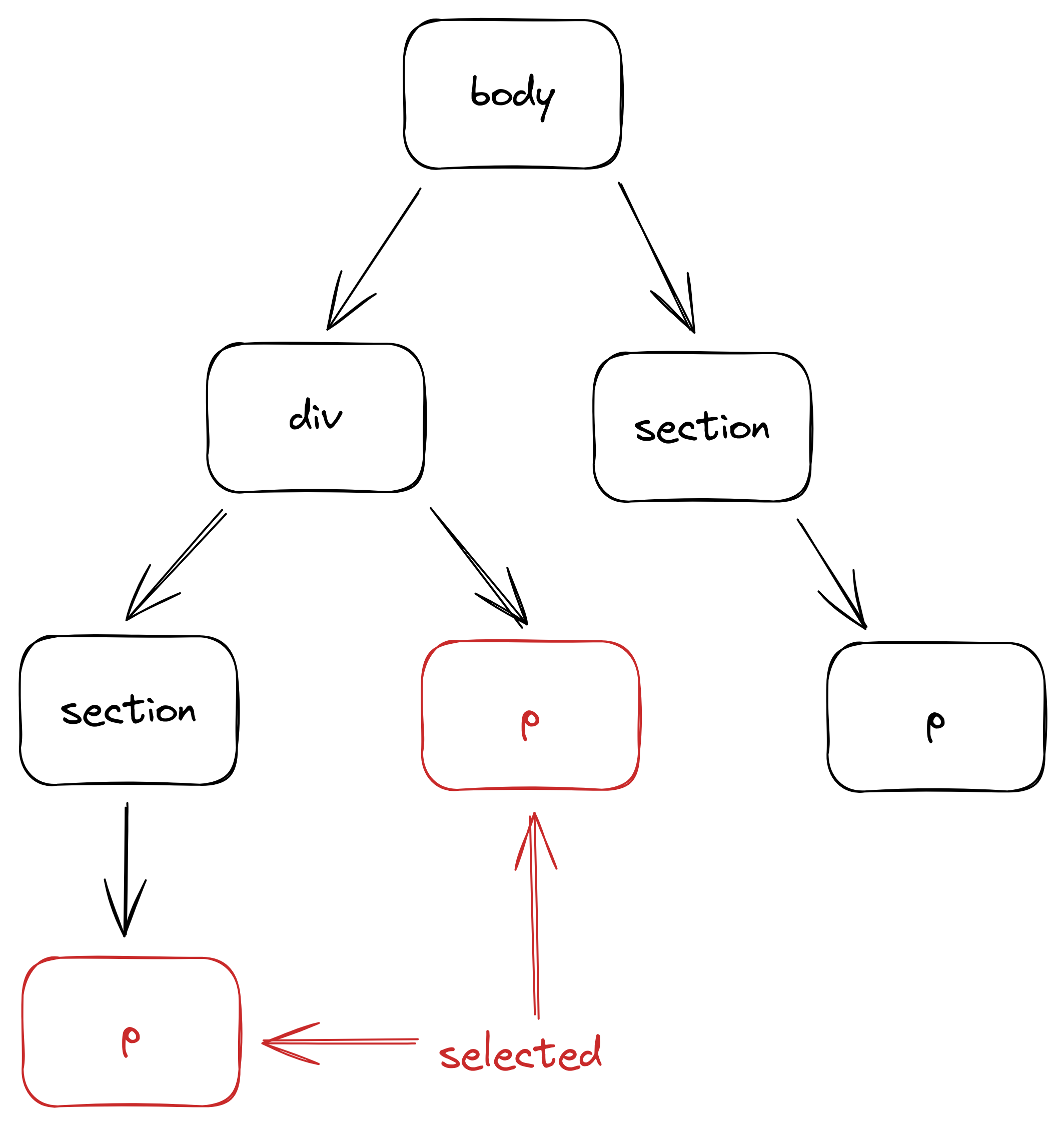
As the DOM tree becomes more complex, it can be challenging to keep track of everything.
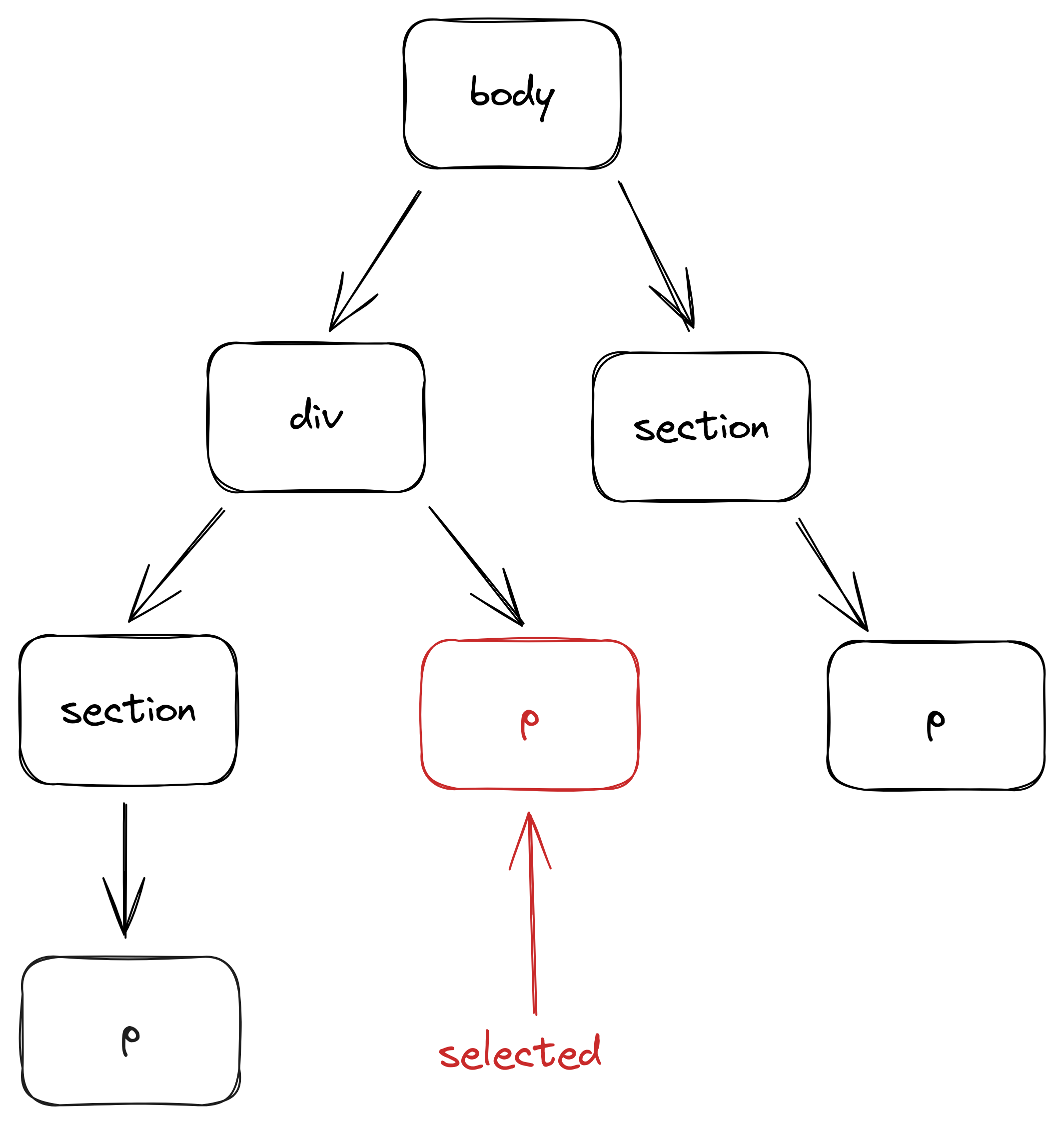
To minimize the risk of errors, you can use a child selector (>) to limit your selections to direct descendants only.
div > p {
  color: red;
}
Selecting siblings
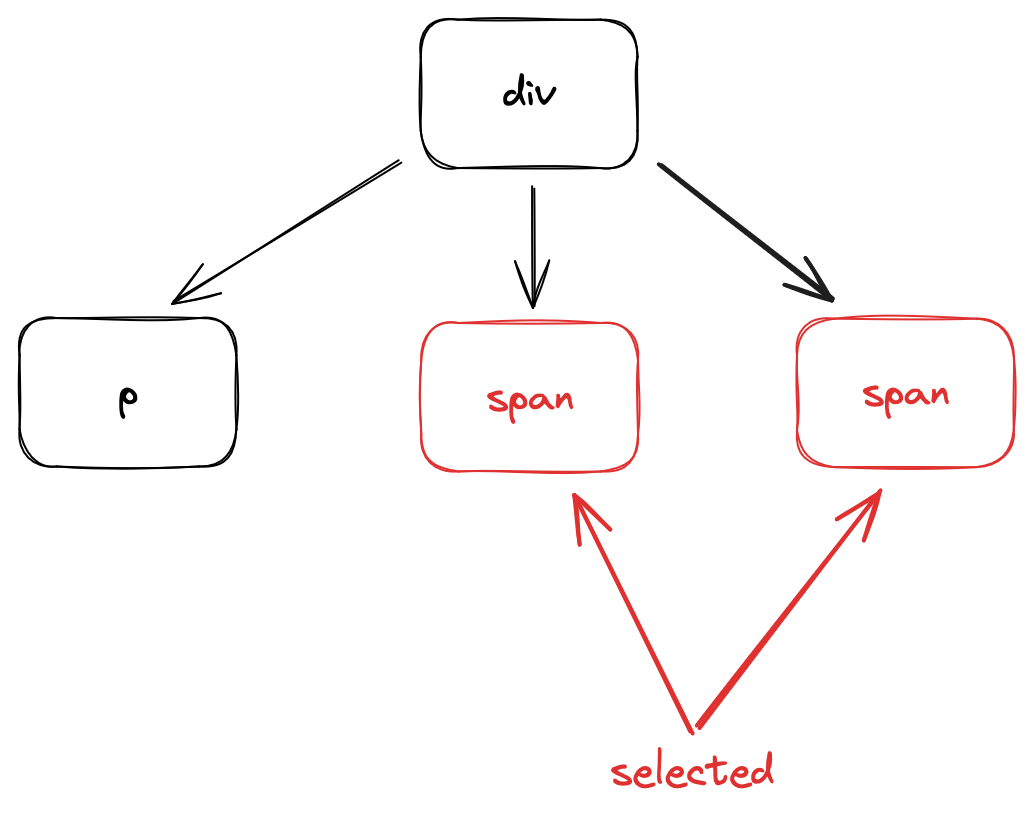
Besides selecting descendants, you can also select siblings using + and ~ selectors.
<p>. . .</p>
<span>. . .</span>
<span>. . .</span>
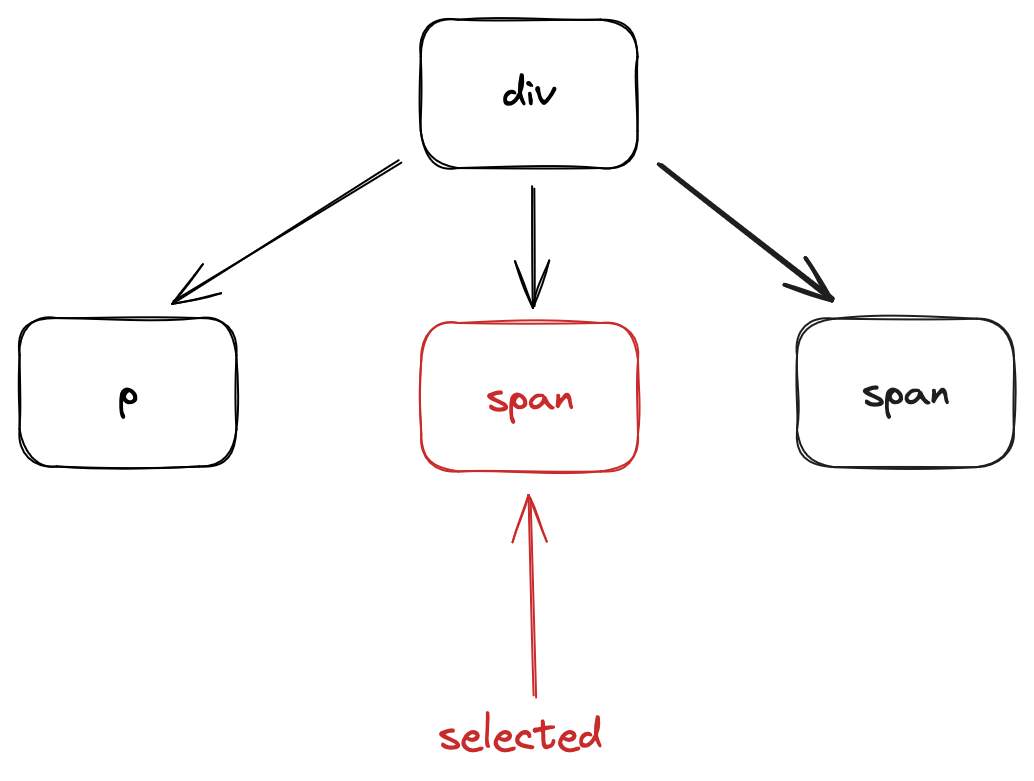
+ selects the sibling directly after the specific element:
p + span {
  color: red;
}
~ selects all siblings:
p ~ span {
  color: red;
}
You can combine different combinator selectors to create a complex selector, such as div > p + span.
However, this is not recommended as it is very easy to lead to mistakes.
Lastly, it is possible to use class selectors alongside combinator selectors. For example, you can select the <p> elements that are descendants of .intro.
.intro p {. . .}In this case, the browser will start with elements under the class intro and check whether they have any paragraph elements as descendants.
Selecting based on states
The pseudo-class selectors let you style an element based on its state.
For instance, let's consider the <a> element, which represents a hyperlink in a webpage.
Initially, it appears blue. Once clicked, it turns red. And after being visited, it turns purple.
Despite being the same element, different styles are applied depending on its state.
Pseudo-class selector is the key to achieving this effect. They target elements only when they are in a specific state.
The hyperlink element starts without any state. When you move the cursor over it, it is given the :hover state, and when clicked, it is given the :active state. Lastly, after being visited, it acquires the visited state.
These states allow you to apply different styles to the same element under different circumstances.
This feature is crucial for frontend design because it enables the webpage to respond dynamically to user actions.
a {
  color: blue;
}

a:hover {
  color: darkblue;
}

a:active {
  color: red;
}

a:visited {
  color: purple;
}
There are other pseudo-class selectors available, and different elements may have different states.
We are not going to cover all of them in this lesson, but if you are interested, here is a list of all pseudo-class selectors from W3Schools.
Selecting parts of an element
Pseudo-element selectors, on the other hand, are used to select parts of an element.
For example, drop cap is a common type of decoration for many webpages. They are used to indicate the beginning of an article.
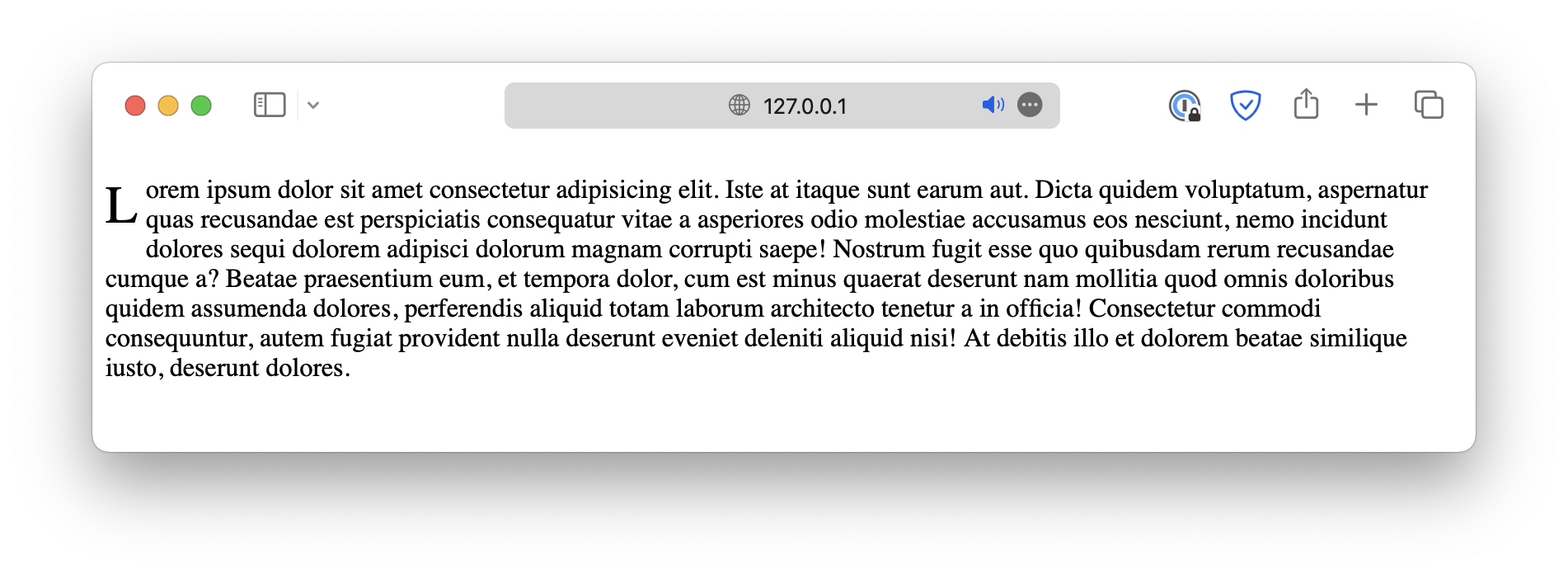
Without the pseudo-element selector, you will have to wrap the first letter of the paragraph inside a <span> and then apply styles.
<p><span>L</span>orem ipsum dolor sit . . .</p>However, there is a shortcut. You can use the ::first-letter selector to select the first letter of the element.
<p class="cap-drop">Lorem ipsum dolor sit . . .</p>.cap-drop::first-letter {
font-size: xx-large;
float: left;
margin-right: 5px;
}.cap-drop locates the elements under the class cap-drop, and then ::first-letter locates the first letter of the selected elements.
Notice that pseudo-element selectors start with two colons (::).
There are other pseudo-element selectors available in CSS. Please visit the linked page for details.
Other selectors
Sometimes, you might need to apply the same styles to all elements in the webpage, such as unifying the font or text alignment.
In this case, instead of repeating the same style rule for all elements, you can use the universal selector (*), which matches all elements in the webpage.
* {
  font-family: Arial, sans-serif;
}
Or, if you wish to select only a subset of elements, you can also use a group selector. Different selectors in the group are separated by commas (,).
h1,
h2,
h3,
p {
  font-family: Arial, sans-serif;
}
Lastly, CSS also allows you to select elements based on attributes. For instance, the following example selects all <p> elements with the attribute lang.
p[lang] {. . .}You can also specify a desired value for that attribute.
p[lang="en"] {. . .}And now, only the <p> elements with the attribute lang="en" will be selected.
<!doctype html>
<html lang="en">
  <head>
    <meta charset="UTF-8" />
    <meta name="viewport" content="width=device-width, initial-scale=1.0" />
    <title>Document</title>

    <style>
      p {
        color: red;
        text-decoration: underline;
      }
    </style>
  </head>

  <body>
    <p>Lorem ipsum dolor sit amet...</p>
    <p>Lorem ipsum dolor sit amet...</p>
    <p>Lorem ipsum dolor sit amet...</p>
  </body>
</html>