What is a CSS Selector
Sometimes, the default representations of the formatting elements are inadequate to express their intended meanings.
For example, the <del> element indicates deleted texts with a strikethrough, which is easy to understand.
However, the <ins> element uses underline to represent insertions, which can be very confusing.
<p>
  Lorem ipsum <del>dolor sit</del> amet <ins>consectetur adipisicing</ins> elit.
</p>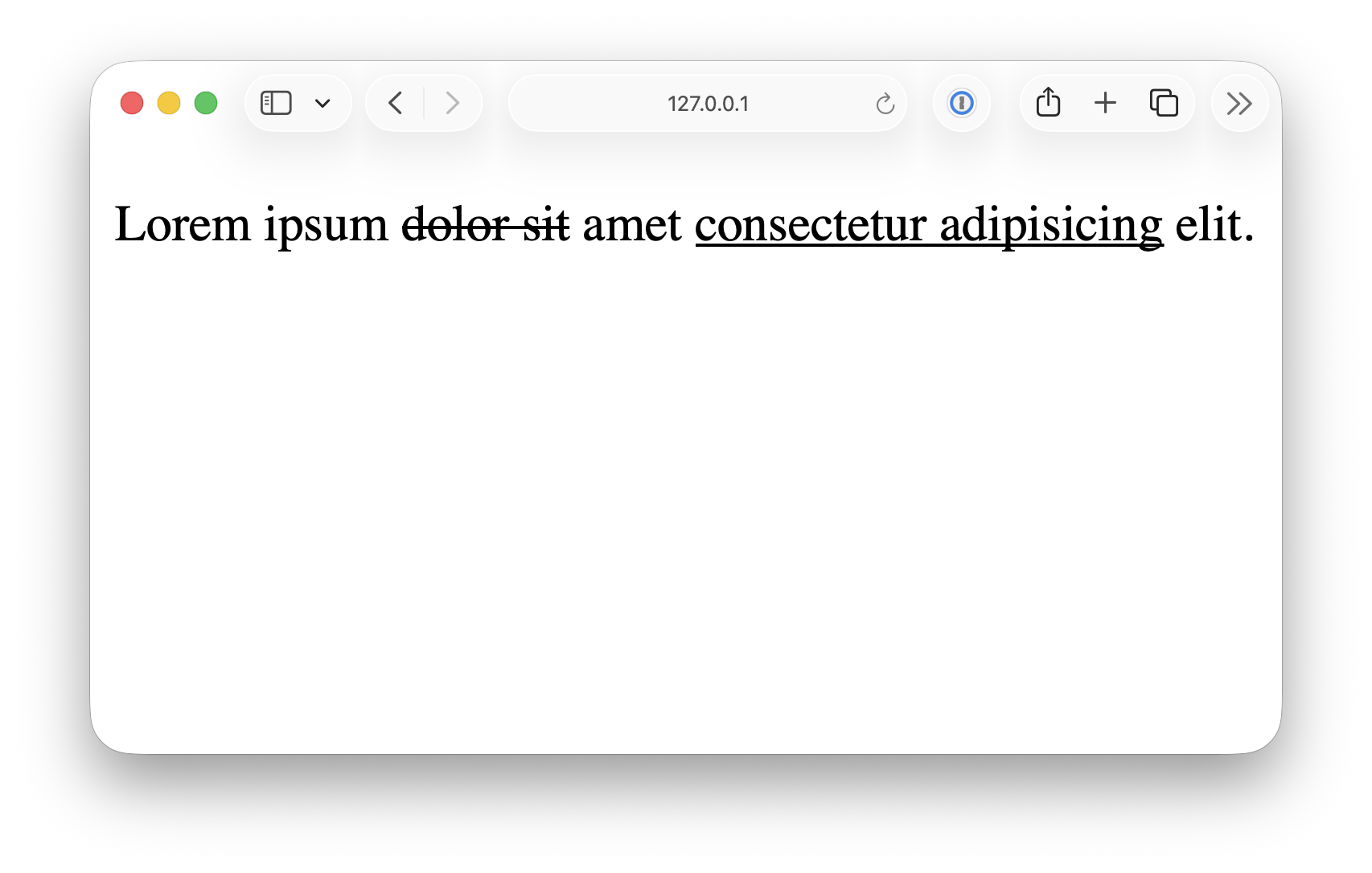
Writing inline CSS
To improve the default appearance of these elements, we'll need the CSS.
CSS is short for Cascading Style Sheet, it controls the appearance of the HTML element, such as their color, spacing, size, and so on.
There are three ways you can add CSS to your HTML document. First, you can add them inline with a style attribute like this:
<p>
  Lorem ipsum <del style="color: red;">dolor sit</del> amet
  <ins style="color: green;">consectetur adipisicing</ins> elit.
</p>
The style is defined in a key/value pair format.
<p style="key: value;">. . .</p>The semi-colon (;) marks the end of a style statement, after that you can define another style.
<p style="color: red; text-decoration: underline;">
  Lorem ipsum dolor sit amet consectetur adipisicing elit.
</p>
Using a <style> element
However, this is an inefficient way of managing styles, as a real-life webpage could have hundreds of different elements. It will become a disaster if you try to micromanage each of them.
In practice, you are likely to have multiple elements that share the same appearance, and it makes more sense to assign the styles in bulk.
This can be achieved by creating a <style> element in the <head> section like this:
<!doctype html>
<html lang="en">
  <head>
    <meta charset="UTF-8" />
    <meta name="viewport" content="width=device-width, initial-scale=1.0" />
    <title>Document</title>

    <style>
      p {
        color: red;
        text-decoration: underline;
Creating a separate CSS file
Alternatively, you could create an separate CSS document, such as styles.css, and then import it into your HTML file:
.
├── index.html
└── styles.css
styles.css
p {
  color: red;
  text-decoration: underline;
}
index.html
<!doctype html>
<html lang="en">
  <head>
    <meta charset="UTF-8" />
    <meta name="viewport" content="width=device-width, initial-scale=1.0" />
    <title>Document</title>

    <link rel="stylesheet" href="./styles.css" />
  </head>

  <body
<!doctype html>
<html lang="en">
  <head>
    <meta charset="UTF-8" />
    <meta name="viewport" content="width=device-width, initial-scale=1.0" />
    <title>Document</title>

    <style>

    </style>
  </head>

  <body>
    <p>
      Lorem ipsum <del>dolor sit</del> amet <ins>consectetur adipisicing</ins> elit.
    </p>

    <p>
      Lorem ipsum <del style="color: red;">dolor sit</del> amet
      <ins style="color: green;">consectetur adipisicing</ins> elit.
    </p>
  </body>
</html>