Customize Text Alignment
Horizontal alignment
The texts are left-aligned by default, but you can change that by setting the text-align property.
It accepts four values: left, right, center, and justify.
<p class="p1">Lorem ipsum dolor sit amet, consectetur adipiscing elit...</p>
<p class="p2">Lorem ipsum dolor sit amet, consectetur adipiscing elit...</p>
<p class="p3">Lorem ipsum dolor sit amet, consectetur adipiscing elit...</p>
<p class="p4">Lorem ipsum dolor sit amet, consectetur adipiscing elit...</p>#p1 {
text-align: left;
}
#p2 {
text-align: right;
}
#p3 {
text-align: center;
}
#p4 {
text-align: justify;
}Try this in the code playground.
Notice that even though text-align of p4 is set to justify, but the last line of the paragraph remains left-aligned.
The final line is not stretched to fill the full width because justify applies only to complete lines of text.
However, you can force it to be justified using the text-align-last property, which takes the same set of values as text-align.
p {
  text-align: justify;
  text-align-last: justify;
}The quick brown fox jumps over the lazy dog. This sentence contains every letter in the English alphabet. Use text-align to control how inline content is distributed within a block.
Vertical align
Besides horizontal alignment, you can also specify how you wish the text to be aligned vertically. By default, texts are aligned to the baseline, which is shown in the diagram below:
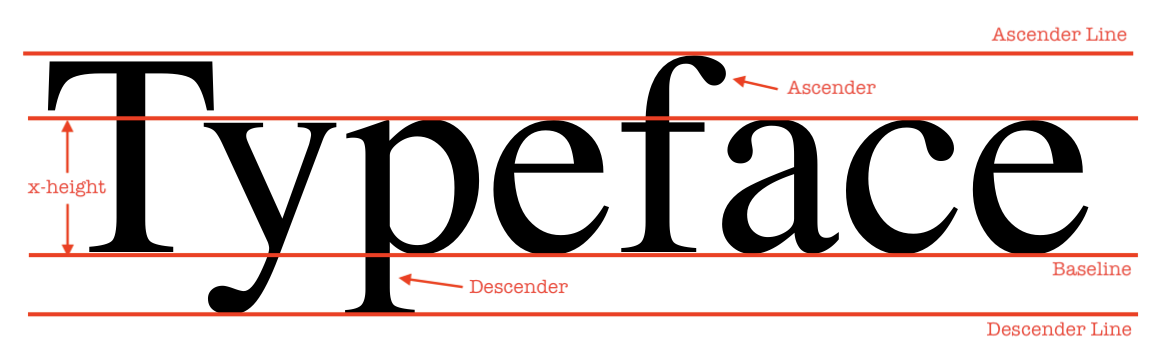
Some letters, like y and p, extend below the baseline, but their main body remains aligned to it.
You can change the default alignment by setting a vertical-align property. For instance, top will align the texts to the highest letter in the same line.
<p>AAA<span class="large">AAA</span><span class="small">aaa</span></p>span {
border: 1px red solid;
}
.large {
font-size: large;
}
.small {
font-size: small;
vertical-align: top;
}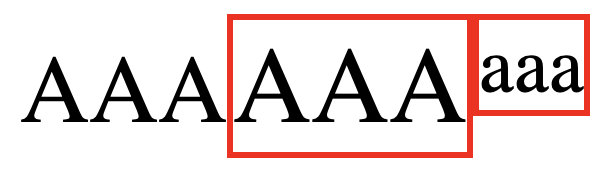
To make the effect more noticeable, we have changed the font size and added borders to each element.
As you can see, the upper border of .small is aligned with the upper border of .large.
On the other hand, the text-top option aligns the text with the highest letter of the parent element.
.small {
  font-size: small;
  vertical-align: text-top;
}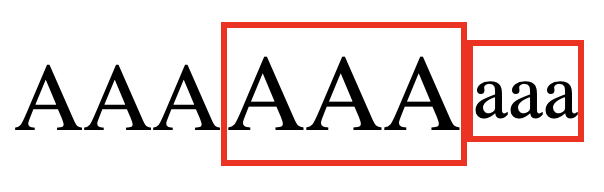
Notice that the top border of .small is aligned with the first AAA, not .large.
This is because .small is aligned with the parent element, and .large, as its sibling element, will be ignored.
The bottom and text-bottom work similarly.
bottom aligns to the lowest letter of the same line, and text-bottom aligns to the lowest letter of the parent element.
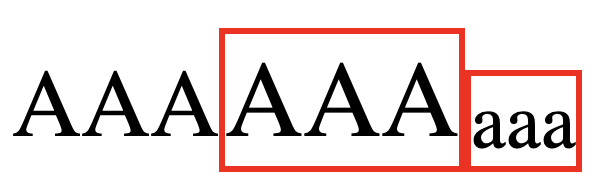
Lastly, the middle option aligns the text to the center of the parent element, and the sub and super options each align to the subscript and superscript baselines of the parent text, respectively.
You can test these options in the code playground.
<!DOCTYPE html>
<html lang="en">

<head>
  <meta charset="UTF-8">
  <meta name="viewport" content="width=device-width, initial-scale=1.0">
  <title>Document</title>

  <link rel="stylesheet" href="/styles.css">
</head>

<body>
  <p>
    <span>Hello, World!</span>
  </p>
</body>

</html>